Update (September 2026): GitPane has been rewritten in Rust and renamed to GitPlume. Read about the migration or grab it from GitHub. The instructions below refer to the original Python version.
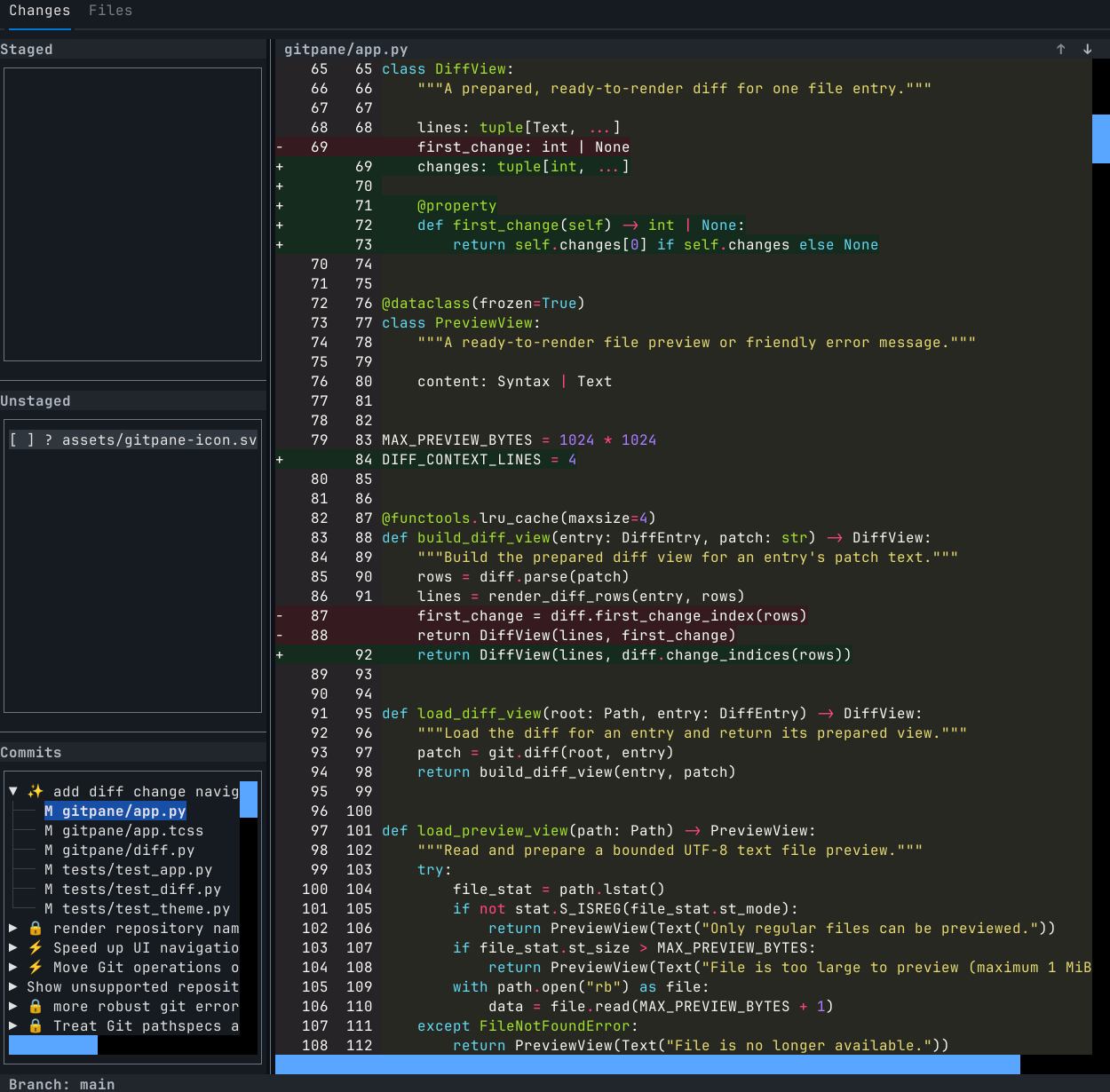
I wanted VS Code’s Source Control sidebar in my terminal. So I built GitPane: a small terminal UI for reviewing diffs and staging changes.
GitPane is a simple terminal-based git UI, built for an audience of one. There are already many git UIs out there, but this one is mine. It's the ideal companion for your terminal multiplexer of choice, and because it's supposed to be used in a terminal pane, it skips some of the more complex features of other git UIs.
It's your working set companion, focused on staging and unstaging files, and viewing diffs.
Why GitPane?
It's incredible how much software development has changed over the past couple of years.
While only a year ago I would spend most of my time in fully featured JetBrains IDEs, the rise of AI assistants has made them less and less relevant to my workflow, especially with my "for fun" projects.
For a while now, my main home has been VS Code. It's a great piece of software, and can be customized to a ridiculous degree thanks to a huge set of extensions and themes.
One of the better things VS Code does is handling the git working set. Its "Source Control" panel maps perfectly with how my brain thinks of work in progress: see a list of files that have been changed, stage them, optionally commit them. You can even browse past commits and check file diffs belonging to them without having to wrangle obscure git commands.
When you click a file, a full diff is opened in the editor, and that makes it really easy to see what's being worked on.
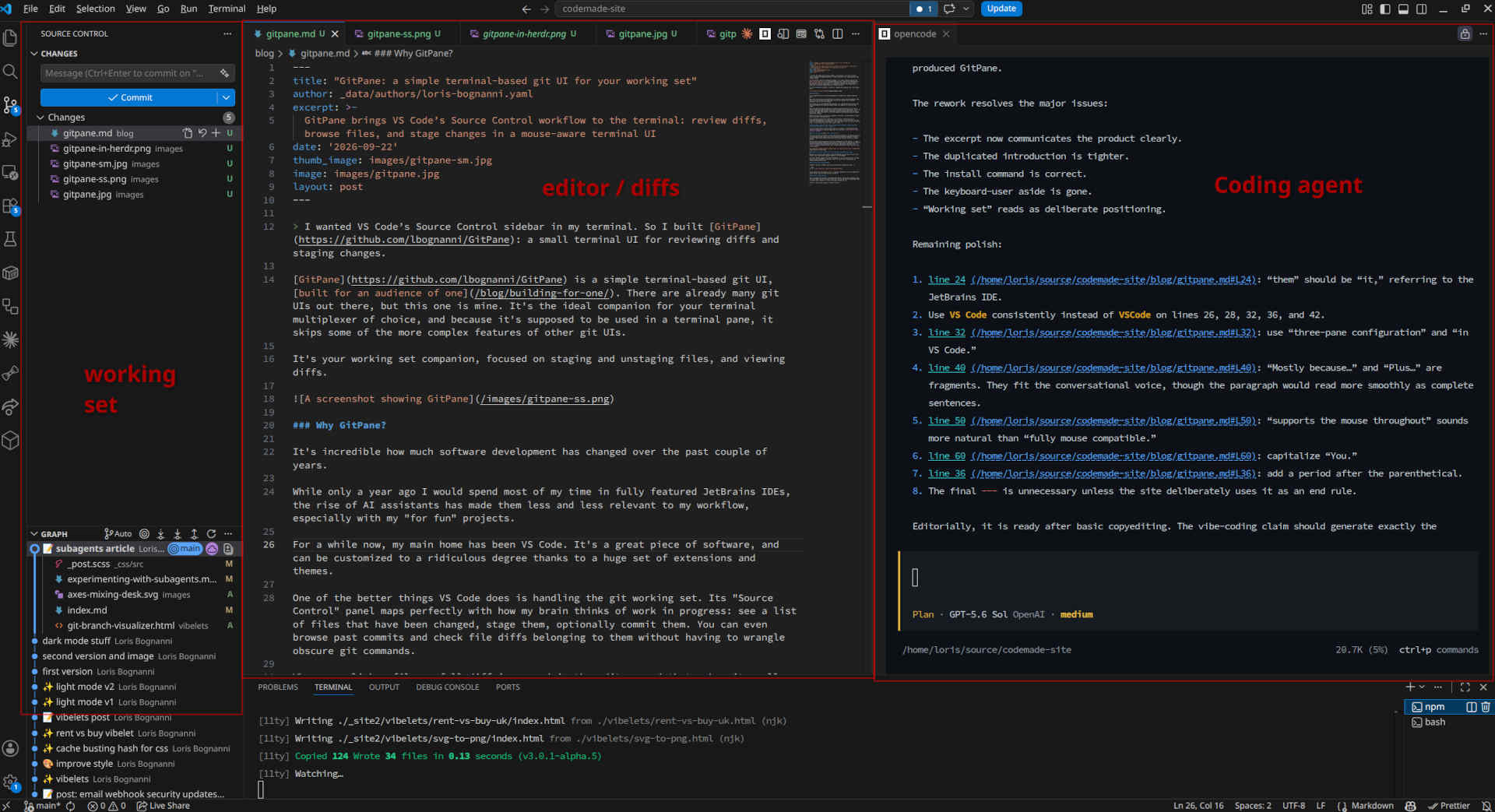
As AI coding has become more integrated in my workflows, I've settled into a three-pane configuration in VS Code: the "source control" pane on the left, the code editor in the middle and a coding agent on the right side. (did you know that you can drag a terminal window and use it as a regular tab?)
At some point, the term "vibe coding" stopped having negative connotations and started just being the way work is done.
In a world where code is read much more than it is written, I started questioning whether VS Code and its resource usage were still justified (insert meme of chrome using all the RAM)
Then I discovered Herdr.
Herdr was the first multiplexer I tried that actually worked for me. Mostly because it is usable with a mouse, and it has a very simple and intuitive interface. Plus the ability to SSH into my desktop machine and continue my sessions remotely is a game changer.
The only thing I was missing was a good way to handle git in the terminal. I tried a few different terminal-based git UIs, but none of them really clicked with me. Most of them were trying to do everything that git can do, and I don't need that. Plus, I really liked my VS Code workflow, and I wanted something that would replicate that in the terminal.
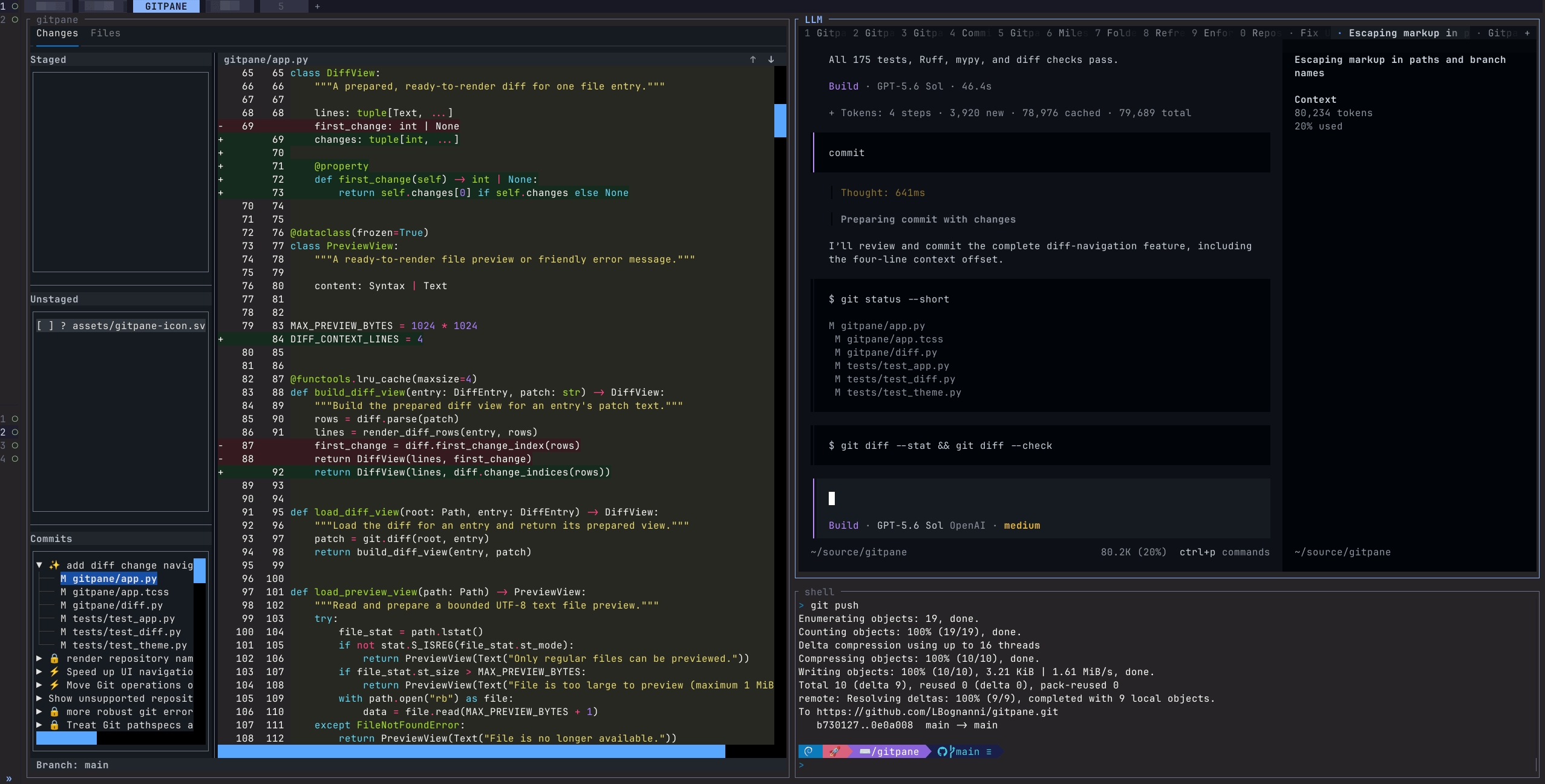
GitPane fills that "sidebar to look at git diff and stage files" gap.
Notably, it also has a file browser, because sometimes you just want to look at the files in your repo without having to open a full file manager.
Of course, GitPane supports the mouse throughout, so you can click on files to stage them, or click on commits to see their diffs. You can also use the keyboard to navigate and perform actions.
Installing and running GitPane
GitPane is written in Python, and can be installed as a system tool with uv:
uv tool install git+https://github.com/LBognanni/GitPaneYou can then run it by typing gitpane in any git repository. It will automatically detect the git repo and show you the working set.
But why no commit button?
That's the beauty of working in a terminal multiplexer: you can have a terminal open next to GitPane, and you can commit from there. You can even have a coding agent open in another pane, and ask it to write the commit message for you.
And yes, I usually ask my agent to commit for me 🙃